
How to Build a Self Hosted Link in Bio in 3 Steps (2026)
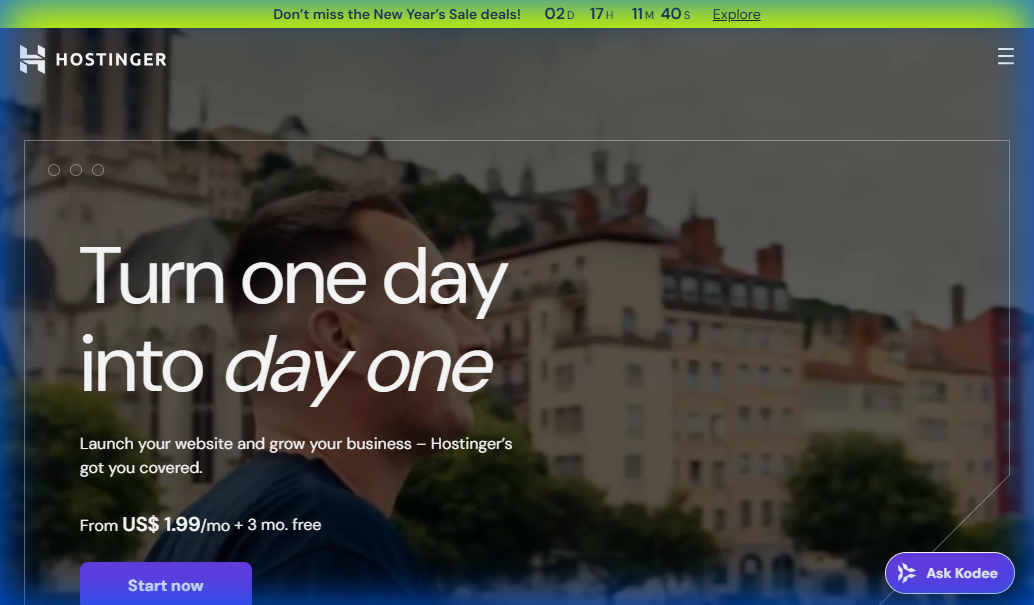
Stop renting your identity.
Platforms like Linktree are great, but you don’t own the data.
In 2026, owning your audience is the only safety net.
If you want total control, zero monthly fees, and a “vibe” that screams technical competence, you need a self-hosted link in bio.
Best of all? It costs less than a latte to run forever.
Here is exactly how to build one using Hostinger and open-source tools like LinkStack.
Prerequisites
Before we start, you need two simple things.
First, you need a domain name (yourname.com). This is your digital real estate.
Second, you need a slice of a server (hosting) to put the files on.
Hardware needed: None. You can do this from a Chromebook.
Skills needed: Ability to copy-paste.
The Real Cost Breakdown (Why This Matters)
Let’s talk numbers because most people never do the math.
Linktree Pro costs $9/month. That’s $108 per year for basic features like custom domains and analytics.
Their Premium plan? $24/month or $288 annually for priority support and advanced customization.
Over three years, you’re paying $324 to $864 to rent a page you don’t control. They can change terms, raise prices, or shut down tomorrow.
Self-hosting with Hostinger runs approximately $36/year after the initial discount period. Three years costs you roughly $108 total.
You save between $216 and $756 over three years. That’s real money you can reinvest into ads, tools, or your product.
But the financial argument is only half the story. The real value is ownership and control over your data, design, and distribution.
Step 1: Get Your Server (The Foundation)
You cannot have a self-hosted site without a host.
We recommend Hostinger because it is cheap, fast, and has a 1-click installer for everything we need.

Why use a VPS or Managed Hosting?
Most “gurus” tell you to use Vercel or Netlify. They are wrong for this specific use case.
Those platforms are for code. Hostinger is for ownership.
When you pay for hosting, you get a dedicated slice of the internet that behaves exactly how you want.
1. Go to Hostinger (use the button below for the best deal).
2. Choose the “Premium Web Hosting” plan. It gives you a free domain, which saves you $15 right away.
3. Complete the checkout.
Why Hostinger?
Because paying $20/month for a simple link page is robbery. Hostinger costs a fraction of that.
Hosting Alternatives (And Why We Don’t Recommend Them)
Bluehost: Overpriced and slow after the first year. Their renewal rates jump to $10+/month.
GoDaddy: Terrible support and aggressive upsells. You’ll spend more time declining add-ons than building your site.
SiteGround: Good performance but starts at $14.99/month after renewal. Not worth it for a simple bio link.
DigitalOcean/Linode: Great if you’re technical, but overkill for this project. You’ll spend hours on server configuration instead of shipping.
Hostinger hits the sweet spot: cheap, reliable, and beginner-friendly. Ship first, optimize later.
Step 2: Secure Your Domain Name
If you chose the Premium plan above, you get a domain credit.
Don’t overthink the name.
If `yourname.com` is taken, try `yourname.bio` or `yourname.site`.
The Psychology of a “Bio” Domain:
Using a `.bio` extension signals intent immediately. It tells the user “this is a directory of my work.”
1. Log into your new Hostinger dashboard.
2. Click “Claim Domain”.
3. Search for your verified handle.
4. Finish the registration (it takes 2 minutes).
Pro Tip: Avoid hyphens. They look spammy.
Already have a domain? You can point it to Hostinger easily, but buying it fresh is smoother.
Domain Extension Strategy
Not all extensions are created equal. Here’s what actually works in 2026:
.com: Still the gold standard. People trust it instinctively.
.bio: Perfect for personal brands. Costs $15-20/year but signals purpose.
.site: Generic but acceptable. Usually cheaper at $5-10/year.
.link: On-the-nose but functional. Works if your brand is playful.
Avoid these: .info (looks like spam), .biz (dated), .xyz (associated with low-quality sites).
If your exact name is taken, add a qualifier: “yourname.works” or “yourname.studio” or “yourname.creates”. Make it descriptive, not confusing.
Step 3: Install LinkStack (The Software)
Now for the magic.
We are going to install LinkStack, an incredible open-source link page builder.
Why LinkStack?
It looks better than Linktree and costs $0. It allows for custom backgrounds, verified badges, and even privacy-focused analytics.
1. In Hostinger, go to “Website” > “Auto Installer”.
2. Search for “LinkStack”. (If not there, we use the WordPress method below).
* Easier Path: Install WordPress first.
3. Let’s stick to the WordPress path for absolute beginners as it’s foolproof.
4. Select WordPress and click Install.
5. Once installed, log into your new site (`yourdomain.com/wp-admin`).
6. Go to Plugins > Add New.
7. Search for “Bio Link”. There are dozens of free plugins that mimic Linktree perfectly.
Our Pick: The “WPLinkTree” plugin or simply building a custom page with Elementor.
The Technical Setup (15-Minute Walkthrough)
Once WordPress is installed, you need to lock down the basics before customizing.
Security First: Install the Wordfence plugin. It’s free and blocks 99% of automated attacks.
Speed Optimization: Install WP Rocket or LiteSpeed Cache. Your page should load in under 1 second.
SSL Activation: Go to Hostinger’s dashboard and enable the free SSL certificate. This takes 5 minutes and makes your site show the green lock.
Now install your bio link plugin. We recommend “Simple Link Directory” or “Taplink Clone” (both free in the WordPress repository).
Activate the plugin, then navigate to its settings page. You’ll see a simple interface asking for your profile photo, bio text, and link buttons.
This is where most people quit. They see a blank interface and freeze.
Don’t overthink it. Start with three links and expand later.
Step 4: Customize Your Vibe
Now you have a blank canvas.
Make it yours.
Most people fail here because they treat it like a generic directory. Treat it like a landing page.
1. Upload your profile photo. Make it high-res.
2. Add your buttons.
* Button 1: Your Newsletter (Own the audience!)
* Button 2: Your YouTube/Instagram.
* Button 3: Your best affiliate offer.
3. Change the background color to match your brand hex code.
Design Tip: Dark mode always looks more premium. Use a deep charcoal (#1a1a1a) background with white text.
Conversion-Focused Link Architecture
The order of your links matters more than you think.
Link #1 should always be your email capture. This is your most valuable asset. Use ConvertKit, Beehiiv, or Substack.
Link #2 should be your primary content platform. YouTube, podcast, or blog. Wherever you publish consistently.
Link #3 should be your monetization vehicle. Affiliate offer, course, coaching, or product.
Links #4 and #5 can be social proof: testimonials page, case studies, or portfolio.
Never put social media links at the top. Social platforms are rented land. You’re trying to move people to owned channels.
If someone clicks your Instagram link first, they’re gone. They’ll scroll Instagram for 20 minutes and forget why they came to your bio page.
Advanced Customization Tactics
Custom CSS: If you know basic CSS, you can completely transform your bio page. Change button shapes, add hover effects, or create gradient backgrounds.
Embedded Content: Add a YouTube video preview or Spotify playlist directly on your bio page. This increases time on site and engagement.
Countdown Timers: Running a limited offer? Add a countdown timer above your primary CTA. Scarcity drives action.
Exit-Intent Popup: When someone tries to leave, trigger a popup offering a lead magnet. Capture emails even from people who don’t click your newsletter link.
Most bio link tools don’t support this level of customization. Self-hosting gives you infinite flexibility.
Top 5 Mistakes to Avoid
We’ve seen thousands of bio links. Here is what kills conversion.
1. The “Paradox of Choice”
Do not add 20 links. Limit yourself to 5 links max.
If you give people too many options, they choose none. Guide them to your best work.
2. Ignoring Mobile Speed
Most people will see this on a phone. Test it on your mobile device.
If your high-res background takes 3 seconds to load, they are gone. Optimize your images.
3. Broken Thumbnails
Ensure every link has a thumbnail or icon. Visuals process 60,000x faster than text.
Use simple SVG icons for Twitter, YouTube, and LinkedIn.
4. Forgetting the SSL
Hostinger gives you a free SSL (the green lock). Make sure it is activated.
If your site says “Not Secure,” nobody is clicking your links.
5. No Lead Magnet
Your #1 link should be a way to capture emails. Don’t just send traffic away.
Send them to a newsletter signup or a free download.
Analytics and Tracking Setup
You can’t improve what you don’t measure.
Install Google Analytics 4 (free) or use Plausible Analytics ($9/month) if you want privacy-focused tracking.
Key metrics to watch:
- Total visits per week
- Click-through rate on each button
- Average time on page
- Bounce rate
- Mobile vs desktop traffic split
If your email capture link has a 5% click rate and your Instagram link has 40%, you have a problem. People are choosing rented platforms over owned channels.
Test different button copy, reorder your links, or add social proof near your email CTA.
Run A/B tests every two weeks. Change one variable at a time: button color, headline, link order, or background image.
Scaling Beyond the Bio Page
Once your bio link is converting, you can expand your self-hosted ecosystem.
Add a blog. WordPress makes this trivial. Publish weekly content that ranks in Google and drives organic traffic to your bio page.
Build a landing page. Create dedicated pages for each offer instead of sending everyone to the same bio link.
Set up email automation. When someone joins your list, send them a welcome sequence that warms them up for your paid offer.
This is where most creators hit a ceiling. They have the bio page and the email list, but no automation tying it together.
If you’re serious about converting traffic into customers, you need a real CRM and marketing automation platform. GoHighLevel is purpose-built for this exact workflow.
It combines landing pages, email automation, SMS marketing, and a full CRM in one platform. You can build funnels, track attribution, and automate follow-ups without juggling five different tools.
For creators and small agencies, it’s cheaper than buying Mailchimp + ClickFunnels + a separate CRM. One login, one bill, complete control.
Check out GoHighLevel if you want to automate the entire customer journey from bio link click to paying customer.
Tools That Help
Building this stack is easier with the right partners.
1. Hostinger
The engine that runs your site. It’s fast, secure, and incredibly cheap for what you get.
2. Namecheap
If you didn’t get the free domain, Namecheap is the best place to buy one separately.
3. Canva
Use this to create custom icons for your buttons. The standard icons are boring.
Maintenance and Upkeep
Self-hosting requires minimal maintenance, but you can’t ignore it completely.
Monthly tasks:
- Update WordPress core and plugins (takes 5 minutes)
- Check analytics and adjust link order if needed
- Review security logs in Wordfence
- Test all links to make sure nothing broke
Quarterly tasks:
- Audit your page speed with GTmetrix or PageSpeed Insights
- Refresh your profile photo or background if your brand evolved
- Review your hosting bill and confirm auto-renewal settings
Set a calendar reminder for the first Monday of each month. Spend 15 minutes on maintenance and you’ll never have downtime.
FAQ: Common Questions
Q: Can I change my domain later?
A: Yes, but it breaks all your old links. Pick a name you can grow with.
Q: Is this really free forever?
A: The software (WordPress/LinkStack) is free. You only pay for hosting (~$3/mo).
Q: Do I need to know code?
A: Zero code required. If you can click a mouse, you can do this.
Q: Can I add a custom domain to Linktree?
A: Yes, but they charge you $10/mo for the privilege. Self-hosting is cheaper.
Q: What if my site gets hacked?
A: Hostinger includes daily backups. Restore your site with one click if anything goes wrong.
Q: Can I sell products directly from my bio page?
A: Absolutely. Install WooCommerce or link to a Gumroad/Stripe checkout page.
Q: How do I drive traffic to my bio link?
A: Put it in your Instagram bio, YouTube description, Twitter profile, email signature, and podcast show notes. Promote it everywhere.
Final Thoughts
You now have a slice of the internet that you actually own.
No algorithm can ban you. No price hike can force you to downgrade.
You are independent.
Now, go fill that bio link with value and start collecting emails.
Ready to start? The first step is the server.
The Safe, Simple Bridge to Scale Your Operations
Look, if you’re tired of wrestling with complex Python backends, databases, user auth, and server hosting just to deploy a simple AI app, the problem isn’t your capability. It’s that you’re running a fragile, high-friction model built to burn you out.
To cross over to highly profitable, highly leverageable systems, you need a different bridge. We call it Visual Backend Orchestration via GoHighLevel Agent Studio.
Instead of manual labor or expensive third-party setups, this system lets you:
- Build your front-end in Lovable or React, drag-and-drop your custom AI agents in GHL, and embed it instantly as a white-labeled SaaS product for clients
- Protect your calendar and scale your operations without increasing your tech overhead.
The TIMER Tradeoff: You can keep wasting hours dealing with technical headaches that bleed your energy and make your business look amateur (look like a massive tech agency with zero developer overhead). Or you can deploy this automated system, protect your sanity (stop maintaining fragile servers and API rate-limit errors on custom VPS stacks), and operate like a market leader.